
The Definitive Guide To Accents On Qwerty Keyboards
An in-depth explanation of differences between QWERTY and AZERTY layouts on Windows and macOS.
Accents.
Accents on QWERTY keyboards.
Not really a bliss, some would say.
I thought the same for some time but I changed my mind.
For years, I've been using AZERTY keyboards. Then, somewhere in 2018, I decided to get a 2015 Macbook Pro.
This was to be able to compile iOS apps, mainly.
But also, I told myself that, considering my desire to live in non-French speaking countries in a few years from now, starting to educate myself on using QWERTY keyboards would be a good idea.
What was my surprise when I found out how much easier writing accents on QWERTY keyboards was than on AZERTY ones!
In this article, I'll teach you how to write accents on QWERTY keyboards and describe the main differences AZERTY and QWERTY layouts have upon each other.
The accented letters you'll learn to write are:
- é, è, ê, ë
- à and ç
- û and ù.
For some, I'll also teach you how to make their uppercased versions.
Write accents on QWERTY keyboards with macOS #
This part supposes that you are using a US QWERTY layout.
Writing é #
In French, the "é" character is heavily used.
The examples #
J'ai évité la voiture de justesse. (I barely avoided the car.)
J'ai égaré mes clés. (I lost my keys.)
The shortcut #
To write "é", you need to press: OPTION + e + e.
Yes, you need to press e twice.
You first hold OPTION and simultaneously press e to make the "´" accent appear. Now, after releasing both keys and pressing e again the desired é will be produced.
Writing è #
The "è" letter is also one that is of great use.
The examples #
C'est un bon stratagème. (It's a good stratagem.)
C'est un piège. (It's a trap.)
The shortcut #
To write "è", you need to press OPTION + ` + e.
Here, you have to hold OPTION and the key directly on the left of 1.
You then press e again and you have your è.
Writing ê #
The "ê" is pretty useful to know.
Not that much used, but still needed for some words.
The examples #
C'est une belle bête. (It's a pretty beast.)
Cette plante semble frêle. (This plant seems frail.)
The shortcut #
You need this combination: OPTION + i + e.
Pressing OPTION and i at the same time will display a "^" on your screen. From there, pressing e will make you have your "ê".
Writing ë #
This last accented e is sort of rare.
Still, it is used in a quite important word but also in many minor ones.
Notice by yourself.
The examples #
Demain, c'est enfin Noël ! (Tomorrow, it's finally Christmas!)
Il a fait une crise aiguë. (He had an acute crisis.)
The shortcut #
To make this letter, you have to use: OPTION + u + e.
Pressing OPTION + u will make the ¨ character appear. Pressing e in this setup will finally write the "ë" letter.
Writing à #
This one is much needed in French.
There's a tremendous difference between "a" and "à".
The first means "had" when the latter means "to" (such as in "I went to his place). Both are pronounced the same.
(It sounds the same as the "a" from action.)
The examples #
Je vais à la plage. (I'm going to the beach.)
Dès demain je serais au Japon. (From tomorrow, I'll be in Japan.)
The shortcut #
To write à, you need to press OPTION + ` + a.
It's exactly the same as for è, with the difference that you now have to end the combination with a instead of e.
Remember to hold OPTION before typing `.
From there, you'll simply need to touch a to form à.
Writing ç #
This curious letter is just so useful.
It is pronounced the same as the "s" letter in "same".
The examples #
Comment ça va ? (How are you?)
Pourrais-je avoir un reçu ? (Can I have a receipt?)
The shortcut #
It's straightforward: OPTION + c.
Use this combination and it'll produce "ç", no more, no less.
Writing û #
This letter is not that much used, but still needed in these cases.
The examples #
Demain, c'est le 1er août. (Tomorrow is August 1st.)
Elle joue bien de la flûte. (She's good at playing flute.)
The shortcut #
Here, it's also the same thing as for ê.
The combination for this letter is thus this one: OPTION + i + u.
It'll make your û.
Writing ù #
Surprising fact, "ù" is used in only one word but this one is vital.
The examples #
Où étais-tu la nuit dernière? (Where were you last night?)
Où sont mes cookies ? (Where are my cookies?)
The shortcut #
Here, it's the same thing as for the è.
The combination for this letter is thus this one: OPTION + ` + u.
Uppercased accented letters #
To write any uppercased accented letter, it's deadly easy: hold the SHIFT key before pressing the "letter part" of any combination mentioned earlier.
To produce an É, press OPTION + e + SHIFT + e.
The full combination is thus holding OPTION + e first. (As usual, nothing will be displayed on-screen.) Then, holding SHIFT + e will create the "É" letter.
This works for everything except the ç.
To have its uppercase letter you have to hold the three keys together, namely:
OPTION + SHIFT + c.
It's that simple — laugh.
Wrap-up #
On macOS, you simply need to remember what letter hides which accent and you're pretty much set to remember how to write any accented letter.
Here's a recap:
- i is for ^ (as in ê)
- e is for ' (as in é)
- u is for ¨ (as in ë)
- ` is for ` (as in è)
Remember that you need to hold the OPTION key while pressing the letter for the accent to appear.
Write accents on QWERTY keyboards with Windows #
This part supposes that you are using the international QWERTY layout.
Writing é #
As already said, in French, the "é" character is really often used. And here is how to write it on a QWERTY keyboard on Windows.
The examples #
Mon poisson est périmé. (My fish is stale.)
Aujourd'hui est un jour férié. (Today is a public holiday.)
The shortcut #
To write é, you need to press: ' + e.
You first press ', nothing will appear on the screen. Then, pressing e once again will form the desired é.
Writing è #
The è is as hard as the previous one.
The examples #
Ce n'est pas un problème. (This is not a problem.)
Mon numéro de siège est le C23. (My seat number is the C23.)
The shortcut #
To write è, you need ` + e.
Here, you simply press the ` key (without holding it) and then press e. You'll have your è.
(There again, you'll notice that the "`" won't appear on the screen.)
Writing ê #
The ê is also pretty easy on Windows, even though it differs a bit from previous combinations.
The examples #
Je vais à la fête de Charlie. (I'm going to Charlie's party.)
Il y a eu un peu de grêle hier soir. (There was a bit of hail yesterday night.)
The shortcut #
Here it's a little bit longer, you have to press: SHIFT + 6 + e.
You hold SHIFT while pressing 6, nothing will appear
on-screen.
Then you press e, and you'll obtain your "ê".
Writing ë #
As said in the macOS part, this last accented e is sort of rare.
It can still prove useful to know how to write it.
The examples #
Noël, c'est déjà demain ! (Christmas! It's already tomorrow!)
Il a un nouveau canoë. (He has a new canoe.)
The shortcut #
To make this letter, you need to perform: SHIFT + ' + '.
Pressing SHIFT + ' won't make any character appear. Afterwards, pressing e will display an "ë".
Writing à #
With this "à" letter, you'll (hopefully) start to see a pattern on this OS.
The examples #
Ce chien est à moi. (This dog is mine.)
C'est le phare à Hon. (It's Hon's lighthouse.)
The shortcut #
Here, you need ` + a.
It's exactly the same thing as writing è but you replace the "e" step with an "a" and you get an "à".
Writing ç #
This useful letter is in fact moderately used.
The examples #
Veux-tu un garçon ou une fille ? (Do you want a boy or a girl?)
J'aime sa façon de marcher. (I like his/her way to walk.)
The shortcut #
Even though the accent is underneath the letter, the process to write this character is somewhat familiar. Use: ' + c.
As usual, pressing ' will not produce any character.
But pressing c afterwards will effectively create a "ç".
Writing ù #
Yes, it's only used for a single word, but this one is too crucial not to be learnt.
The examples #
Où est-il ? (Where is he?)
Où est-elle ? (Where is she?)
The shortcut #
It's the same as for à and è, you simply need to press: ` + u.
Remember, do it one key at a time as pressing both simultaneously won't create the accented letter.
Writing û #
As said in the Mac part, this letter is used in very few words, look by yourself.
The examples #
Cet objet a un faible coût. (This object has a low cost.)
Cet endroit n'a pas l'air sûr. (This place doesn't seem to be safe.)
The shortcut #
For this letter, you need this combination: SHIFT + 6 + u.
Uppercased accented letters #
To write uppercased accented letters, it's not that different.
For a É, simply ' + SHIFT + e.
The full combination is thus pressing ' (no character will be displayed), then hold SHIFT and press e.
For any accented letter, you simply add SHIFT before pressing on the letter of the combination and you're set. This time, there is no exception with Ç.
Voilà !
Wrap-up #
Here, it's also pretty easy to create any accented letter you wish — whether it's the capital version or not.
There is one key for one kind of accent and that's it. Here's the recap:
- ' allows writing é
- ` allows writing è
- ^ allows writing ê
- " allows writing ë.
Write accents on AZERTY keyboards #
Wondering how much different writing accents is on AZERTY keyboards than on QWERTY ones?
That's the part about it.
Writing any accented letter #
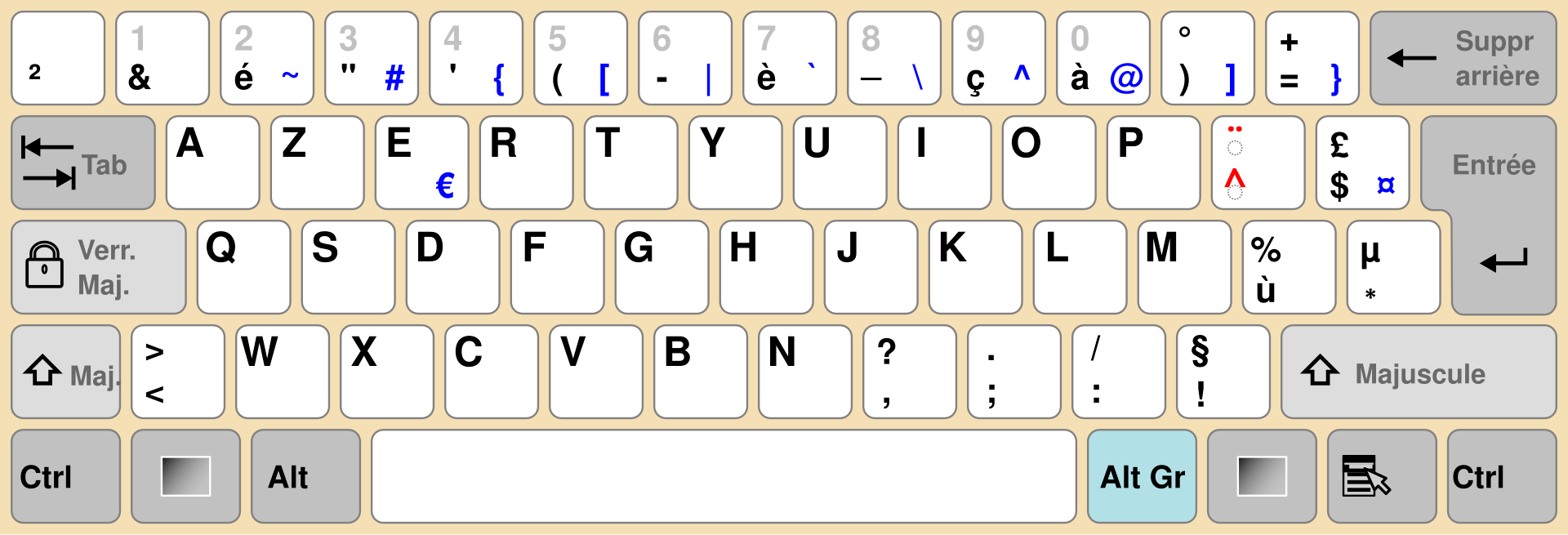
On AZERTY keyboards, you have a key for nearly every accent.
You have an "à" key as well as an "é" key, an "è" one and also a "ù" key.
So any accent is quite simple to write, right?
You simply press the provided key.
Yes, but there's a lil' catch.
There is one key for each accented letter, fine.
However, this very fact is what makes it harder than with QWERTYs.
It means that you literaly have to remember the weird placement of each key!
And I'm not even mentionning remembering how to reach them without looking at your keyboard. (I use touch typing a lot.)
One thing to note for non AZERTY users:
On AZERTY keyboards, you have to hold SHIFT to write any number.
You'll soon got why I gave you this information.
Here's how to write accents on AZERTY layouts:
- the à letter is on the 0 key.
- the ç one is on the 9 key.
- the é is on the 2 key.
- letters è and é are respectively on the 7 and 9 and keys.
- "ù" is on the ù key, which is on the right of the M one.
Note: The "M" key location on AZERTY keyboards is the "L" on QWERTY ones.
As for ê and û, they need to be crafted.
You have to press 9 (that will create a ^), then press the desired letter to create the wanted character.
See?
Pressing a number without Caps Lock enabled or holding SHIFT will not produce a number but one of the special characters written underneath the keyboard numbers.
To help you better wrap your head around the matter, here's a visual help.
Got it?
Got how inconvenient it can be?
I think that our hands travel quite a lot to make these accents.
Consequently, I find it harder to write accented letters on this layout.
But wait, it's not over yet!
Remember the uppercased accented letters thingy?
Wonder how to create them on AZERTY layouts?
Well... have you heard about ALT codes?
Let the fun begin.
Long live ALT codes! #
Or not.
First, what are ALT code combinations?
It's when you hold the ALT key and type a number which ends up creating a single character.
Example:
Hold ALT while typing 144. Release ALT, the É letter will appear.
You tried it?
It didn't work?
Of course! There's catch!
You must use the numpad numbers for this trick to work!
You have a laptop? Of course it doesn't have a numpad.
You have an external keyboard with no numpad? Yes, you're fried.
In the case of laptops, there is still a chance.
If you're lucky enough, your laptop fn key may enable you to access a hidden numpad.
I explain more about it in this part of my Medium article.
It's a huge Medium post so give it some time to load.
After few seconds, it should automagically scrolls to the right part.
If you glanced at my other post, you may now understand the challenge.
Anyway, let's get to the meat of this part.
Here's an overview of how to make the uppercased version of the letters you learnt to write in this post:
- ALT + 144 (or ALT + 0201) for É
- ALT + 0200 for È
- ALT + 0202 for Ê
- ALT + 0203 for Ë
- ALT + 0192 for À.
- ALT + 0199 for Ç.
Note: When there is a leading zero, you must write it, otherwise it will produce another character.
And... that's it!
That's how you create uppercased accented letters on AZERTY keyboards.
Pretty cumbersome right?
Wait! It's still not over! Though, it's sort of minor.
For your information (so you really know all nuances keyboard layouts have) there is only one ALT key: It's the "left alt" one.
The one on the right is an Alt gr key.
This is the equivalent to pressing the left ALT key and CTRL at the same time. However, some keyboards will simply have ALT written on both alt keys for design purposes, so don't be tricked!
Okay, let's clear one last thing about these capitalized accented characters...
They are absolutely not used.
And I think I understand why...
I've never encountered anyone (or just too few to be significant) French speaking people that knew how to write these letters. Plus, I never saw any of those capitalized accented letters in any official paper or so.
It is as if these letters have really no utility, which looks sad to me.
I do use them.
A bit to show off that I know it's possible to write them.
But also because, hey they do exist!
It must be for a reason.
Wrap-up #
In the end, the uppercased versions are not that used, not to say not at all, but still, I was amazed.
With AZERTY layouts, you are not able to write any uppercased accented letter without using alt codes! Which, you'll agree, is far from being convenient.
And even if we don't take the case of capital accented letters, having to remember one key per accented letter is quite cumbersome as opposed to remembering a logical pattern to craft the letter you want.
Final thoughts #
To me, QWERTY layouts (be it on Windows or macOS), win hands down the convenient aspect of this comparative.
You want a certain accented letter?
You write its accent first, then add the letter.
You use about the same pattern for any other of these and you're done.
Plain and simple.
Even though having one key for each letter seems simpler, to me it's not.
Yes, on macOS you have to remember which key "hides" which accent. But once you're familiar with this knowledge, I find writing accented letters faster on QWERTY than on AZERTY.
Plus, even though the accents are hidden, they — at least — are still accessible in a simple way (read: not located on the keyboard's numbers row) so it definitely feels easier to me. (And touch typing is not unknown to me.)
This wraps up this article on writing accents on QWERTY keyboards and AZERTY ones. If you found any typo, or know simpler ways of performing certain commands I described, feel free to share your golden nugget!
Did you find this article useful? Thank me with a matcha! 🍵
↑