Subset a font using glyphhanger
Learn to shrink a font file to minize its size and load your website faster.
I'm a performance guru.
I love squeezing the tiniest bit out of anything so my website loads as fast as possible.
Okay, okay, I may not go as far as inlining my HTML or the 1 KB of JavaScript this website uses. Still, when there are big wins to be taken, I go for them.
And what today's win is about? Fonts!
I'll show you how to make a font file as light as possible.
Here's an overview of how we'll do this:
- use the lightest font file format available in 2025
- subset a font file to contain only a given set of characters
- make use of this very file on your website.
Let's get to work!
Download a font file #
If you don't have a font file, download this one from Google Fonts. Once you opened the link, click on "Get font" on the top right-hand corner and on "Download all (1)".
You'll end up with a zip archive holding many .ttf files.
Unzip it and use any file located in the "static" folder to follow me along this guide.
For the rest of this article, I'll be using the one named SofiaSansExtraCondensed-Medium.ttf.
Now that you have a font file ready to subsetted, we have one crucial intermediate step to perform before going to the heart of it.
Convert your font file to .woff2 #
Take your beloved font file and use this
Cloud Convert
page. With it, you'll be
able to convert any .ttf file to .woff2.
In 2025, woff2 is still the most optimized font file format.
Changing any font file you use to this one is the fastest way to shred dozen of kilobytes with ease and safely.
Move on to the next section upon success of your conversion.
(Welcome to the family.)
Going from .ttf to .woff2 for the Sofia Sans Extra Condensed Medium file shrank its size from 159KB to 44KB!
Install glyphhanger #
The tool you'll be using to subset font files is glyphhanger.
You can find it on the official GitHub of the project or directly on NPM's website .
To save you time, here is the command to install it globally.
npm install -g glyphhanger
A prerequisite to use glyphhanger is the library called pyftsubset. You may or may not have it but we'll soon figure
out.
For now, let's swiftly move to the next and (most exciting) part.
Subset the font file #
This is the meat of this article.
To subset your font file, you need to know which set of characters you want to preserve. In my case, I'll use "GREGORDY". (Yes, in uppercase.)
Jot down yours before continuing.
Once you identified all the characters you want to keep, open a terminal and change (a.k.a cd) into the directory
that holds your font file. Here, run this command.
glyphhanger --subset=SofiaSansExtraCondensed-Medium.woff2 --whitelist=GREGORDY
Replace SofiaSansExtraCondensed-Medium.woff2 with your font file's name and use the set of characters you identified
earlier in place of "GREGORDY" for the whitelist argument's value.
If everything went right, you'll get an output similar as below. Notice that at the very right, it will indicate you how much your font file lightened up.
Subsetting SofiaSansExtraCondensed-Medium.woff2 to SofiaSansExtraCondensed-Medium-subset.zopfli.woff (was 43.2 KB, now 2.16 KB)
Subsetting SofiaSansExtraCondensed-Medium.woff2 to SofiaSansExtraCondensed-Medium-subset.woff2 (was 43.2 KB, now 1.51 KB)
Here you can observe in awe that keeping six distinct characters ("G" and "R" appearing twice) reduced this font file size by 93%!
Its final size is 1.51 KB! That's a world of difference compared to the previous 43.2 KB, and incomparable with the
144 KB of its original .ttf counterpart.
One last thing about subsetting.
Instead of the plain characters, you can also use Unicode for the characters you want to preserve.
If that be, use this website and write in the input next to "Type here" the exact characters you want to keep. Hit Enter and you'll see the following.
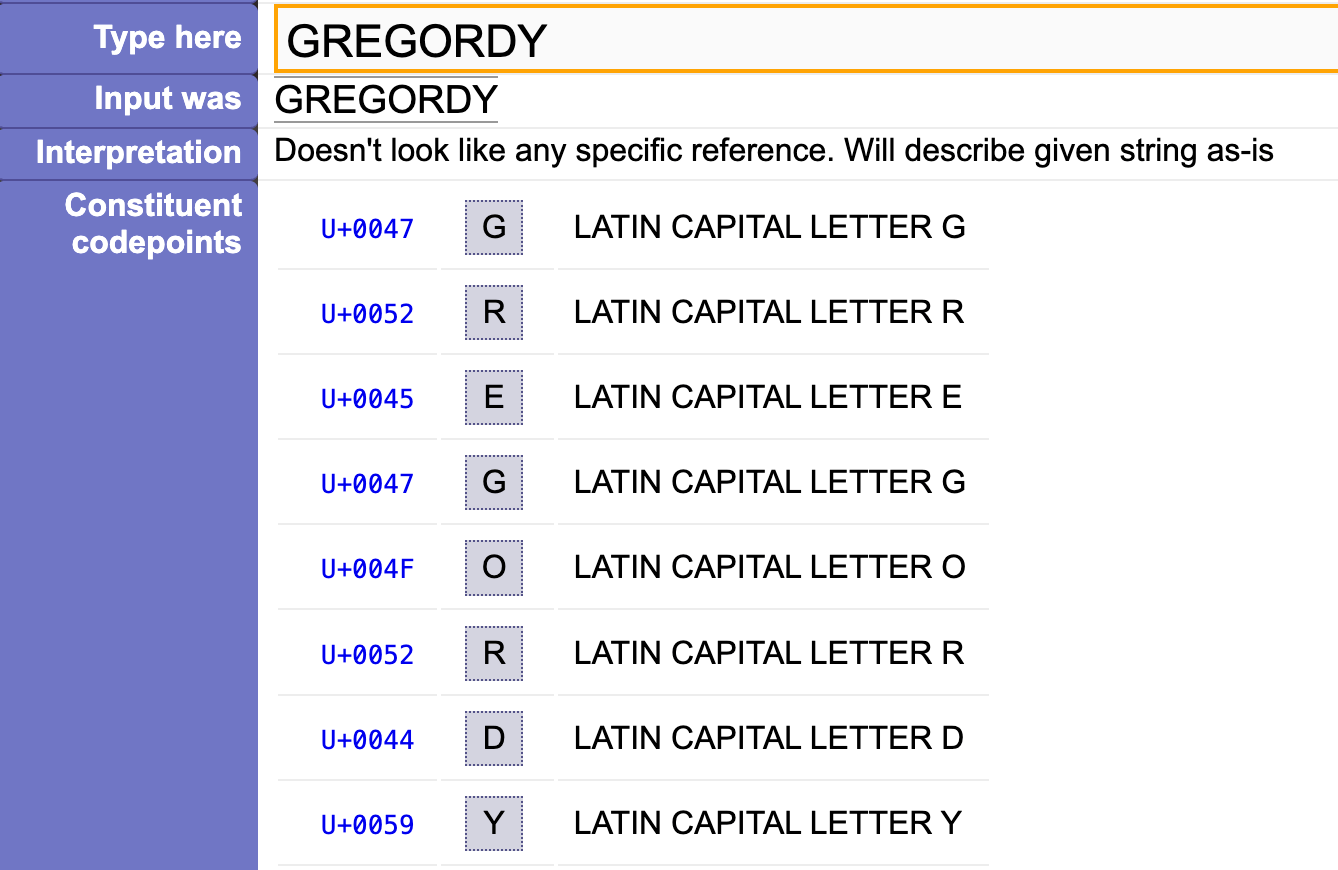
The interesting part here is "Constituent codepoints".
It gives you the Unicode codepoint for each character you entered. Equipped with this information, you can now craft an updated command to replicate what we just performed.
Mine looked like this.
glyphhanger --subset=SofiaSansExtraCondensed-Medium.woff2 --whitelist=U+47,U+52,U+45,U+47,U+4F,U+52,U+44,U+59
Depending on what kind of character (accented letters, emojis, arrows, and others) you're trying to preserve, this could prove pretty handy.
Also, it just looks cool, doesn't it?
If you encountered any Python-related error while trying to run these glyphhanger commands, read this bonus part.
Self-host the subsetted font file #
Now that you have the smallest possible font file, you need to use it.
And (one of) the best ways to enjoy it is to self-host it under the same domain as your website.
This way you'll:
- reduce your request count by one (the one to Google Fonts that asks for the CSS which in its turn requests for the actual font file)
- avoid extra DNS resolutions and TLS handshakes (from fonts.googleapis.com and fonts.gstatic.com)
- AND, of course, you'll benefit from receiving a hyper-tailored file that only you in the whooole world have and need.
These pros will walk hand in hand to improve your website loading speed, isn't it beautiful?
*Sips a hot tea and serenely admires the horizon*
Head (back) into your CSS file and create the following.
@font-face {
	font-family: "Sofia Sans Extra Condensed";
	src: url('/public/fonts/Sofia-Sans-Extra-Condensed-subset.woff2') format('woff2');
	font-display: swap;
}
On the element you want your font to be applied, use the following.
.love-lightweight-fonts {
	font-family: "Sofia Sans Extra Condensed", sans-serif;
	font-optical-sizing: auto;
	font-weight: 500;
  	font-style: normal;
}
Here, the font-weight value must match the font weight from the file you're using. I downloaded the "Medium" font
file, which equates to 500 (Regular being 400, haha, I sometimes swap these two).
Also, the value of font-family
can be anything as long as you use the same in both the @font-face and the element using it.
Yes, sometimes, I like reminders like these so that's my gift to you.
It's not a doubt about your skills, okay? You're more than awesome.
With this? You're done!!
Congratulations on making your website faster!
Your users, the planet, and yourself will thank you for this!
And I thank you for reading up this far.
Additional help to configure glyphhanger #
This section is only for those who ran into issues while executing glyphhanger commands.
I'll provide you the setup that made it work on my machine.
Machine: Macbook Pro M1 Pro.
OS: Sonoma 14.7.4.
Unix shell: Zsh.
Pyenv: Installed (to easily switch between Python versions).
As Python 2 was the default version on my system, I need to first run pyenv shell 3.13.1 for glyphhanger to run using
this exact version.
If you have pyenv, you may have a different version installed through this utility. Run pyenv versions to discover it
and replace 3.13.1 from the previous command with the version you found.
Executing glyphhanger after this should work flawlessly.
Did you find this article useful? Thank me with a matcha! 🍵
↑